Showing posts with label XMCloud. Show all posts

Monday, 4 November 2024

What’s New in Sitecore XM Cloud

November 04, 2024 0


In the September 2024 release for XM Cloud, Sitecore introduced a range of exciting features designed to simplify website management, making it easier for teams to collaborate within a single, centralized application. This update includes enhanced tools for managing site collections, creating new websites, setting site configurations, handling languages, editing hosts, and other features tailored for large-scale, multi-site environments. Let’s take a closer look at each feature.

Site Collections - Simplified Creation and Management

One of the key updates in the September release is the enhanced ability to create and manage Site Collections. Site collections provide a structured way to organize sites, allowing content and templates to be shared seamlessly across sites within a collection. With XM Cloud Sites, you can now create new site collections by providing a Display Name and a System or Item Name, ensuring stable, technical references.


Site Collections help group sites in a way that makes them more accessible, supporting focused content work tailored to specific marketing objectives. This streamlined approach is achieved using the existing Security model, enabling targeted collaboration for marketers.

Site Creation with Templates

Creating new sites within XM Cloud has become even more user-friendly. Users can now select a Site Template that best suits their needs, with each template offering detailed information to ensure a clear understanding of the setup before launching the site.


In addition to basic information like site name and language, users can now choose which site collection to install the site into or create a new site collection and name it during setup.


Enhanced Site Search

For those managing multiple sites in a large-scale environment, the new search feature makes it easy to locate specific websites by filtering through site collections. Filters can be reset at any time to view the full list of sites.

Manage Site Settings

Users can now easily access and configure site settings, including name, system name, and description. New site thumbnails can be uploaded, or existing ones regenerated.

The “Share” option enables users to share content and configurations across sites within a site collection, making it easier to manage centralized content like global campaigns. Presentation-related elements such as page and partial designs, Available Renderings, Styles, and Rendering Variants are also shareable, facilitating centralized site administration.


Under “Site hosts,” users can configure multiple host settings, including host, default languages, and editing host preferences.


On the “Analytics and personalization” tab, site identifiers for use in CDP and Personalize can be managed.

To support multiple languages, users can configure all required languages under the “Languages” tab, allowing content creation in the desired language directly within XM Cloud Pages.


New XM Cloud Navigation Menus

XM Cloud now features an updated, simplified interface to improve access to tools and navigation between projects and environments.

The XM Cloud homepage includes a new navigation header, providing quick access to all XM Cloud tools. Users can open Pages by clicking on a site thumbnail or using the Page Builder button in the navigation header. From Pages, the new Pocket navigation menu offers rapid access to other tools. The Forms and Components builders are accessible via the Design Library menu, while the Media Library, Content Editor, and Explorer can be found under the Content menu. Additional tools are available in the left-hand Settings pane or through the Sitecore Desktop.


Organization Navigation on XM Cloud

The homepage Switcher allows users to easily switch between projects, environments, and organizations. It also provides a quick link to the Sitecore Cloud portal.


Integrated Documentation and Support Tickets

To enhance user experience, the September release introduces integrated Documentation and Support Tickets. A help feature, accessible by clicking the question mark icon, provides direct access to documentation and the ability to raise support tickets with ease.


For more detailed information, please refer to the following resources:

You can also watch a video from Sebastian Winter at Discover Sitecore, which provides a visual walkthrough of the latest features.

Happy Sitecoring!


Thursday, 26 September 2024

Exploring XM Cloud Component Builder: Add Styling To Your Component

September 26, 2024 0


Welcome back to our XM Cloud Component Builder series blog. In my previous blog of this series I discussed about how to create a component using XM Cloud component builder. In this blog we will begin with understanding what the Sitecore XM Cloud Components style library.

The Styles library and builder of XM Cloud Components is a design system that manages the styles of all components and their versions and ensures visual consistency across all your digital properties. 

Define basic styling:

In XM Cloud Components, style design begins with defining the basic category, which includes fonts, colors, graphics, and breakpoints.


Fonts:

You can define and select fonts to maintain consistency and readability across your website.


To add a font to the Style library, follow these steps:

  1. In the Styles builder, click Fonts in the left pane.
  2. At the top of the page, click Add font library.
  3. In the Font type field, choose either Google or Custom fonts based on your requirements. For custom fonts, you can upload them using the Fetch remote CSS file option.
  4. I'll select a Google font family from the drop-down menu, then choose the relevant font.
  5. Select the desired font styles by checking the boxes under each style option.

Colors:

You can add the colors you want to use for your brand. It is recommended to create collections and organize colors within them for better maintenance and consistency.


To create a new color collection:

  1. In the Styles builder, click Colors in the left pane.
  2. At the top of the page, click Add collection.
  3. Add with unique collection name and save.

To add a color to a collection:

  1. In the desired color collection, click Create.
  2. Assign the color a unique class name and confirm which collection it belongs to.
  3. Click the color input field (e.g., HEX or RGB) and enter the color value.
  4. Adjust the opacity as needed.
  5. Click Save.

Graphics

Defining graphics in the Styles Library ensures that all visual assets, such as logos and icons, are used consistently across your website. This helps maintain User Experience, Brand Consistency, and Optimized Graphics.

It is highly recommended to create collections and organize graphics within them for better management.


To create a new graphic collection:

  1. Navigate to the Graphics tab in the left Styles menu.
  2. Click Add collection at the top right corner of the page.
  3. Name your new graphic collection and click Save.

To add a graphic to a collection:

  1. In the desired graphic collection, click Create.
  2. Assign the graphic a unique name and confirm which collection it belongs to.
  3. Paste the image or icon URL.
  4. Click Save.

Breakpoints:

You can create custom breakpoints for your website and organize them into collections. Breakpoints are sorted from the largest to the smallest within each collection, helping you manage Responsive Design and User Experience effectively.


To create a new breakpoint collection:

  1. In the Styles builder, click Breakpoints in the left pane.
  2. Click Add collection.
  3. Assign a unique name to your collection.
  4. Click Save.

To add a breakpoint to a collection:

  1. In the desired breakpoint collection, click Create.
  2. Name the breakpoint (e.g., Large for big screens, Medium for tablets, or Small for mobiles).
  3. From the drop-down menu, select the collection the breakpoint belongs to.
  4. Enter the pixel values for when the breakpoint starts and ends. Ensure that breakpoints do not overlap, as this can cause issues with responsive components on a webpage.
  5. Click Save.

Style rules

In Sitecore XM Cloud Components, you can build style rules to extend design primitives and apply them to elements. Rules such as Typographies, Decorations, Fills, and Spacing utilize the basics (fonts and colors) you've previously added to the Styles library. You can also incorporate custom CSS styles into these rules.


Typographies:

Typographies are extensions of fonts with defined sizing for each font type.


To create a new typography collection:

  1. In the Styles builder, click Typographies in the left pane.
  2. Click Add collection.
  3. Assign a unique name to your collection.
  4. Click Save.

To add a new typography:

  1. In the desired typography collection, click Create (+ icon).
  2. Enter a name for the typography (e.g., Article headline).
  3. On the Font type tab, select a font (only Google fonts are available).
  4. On the Settings tab, configure values for font size, line height, letter spacing, paragraph spacing, icon size, and case style. Set these values independently for different breakpoints.


  5. Click Save to add the typography to the Styles library.

Decorations:

Decorations allow you to add visual accents like borders and drop shadows to elements and blocks.


To create a new decoration collection:

  1. In the Styles builder, click Decorations in the left pane.
  2. Click Add collection.
  3. Assign a unique name to your collection.
  4. Click Save.

To add a new decoration:

  1. In the desired decoration collection, click Create (+ icon).
  2. Enter a name for the decoration.
  3. On the Corner radius tab, define rounded corners for elements and blocks.
  4. On the Drop shadow tab, configure shadows for elements and blocks.
  5. On the Border tab, add borders or border shadows to elements and blocks.
  6. Click Save to add the decoration to the Styles library.

Fills:

Fills allow you to add background colors or gradients to cards, buttons, or sections.


To create a new fill collection:

  1. In the Styles builder, click Fills in the left pane.
  2. Click Add collection.
  3. Assign a unique name to your collection.
  4. Click Save.

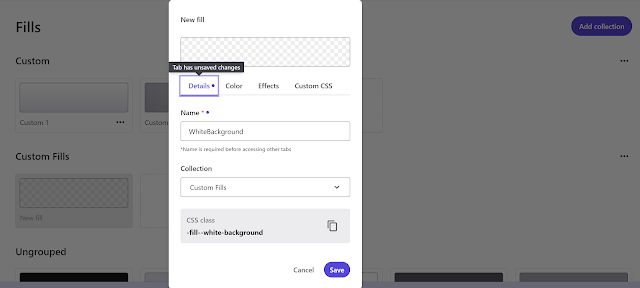
To add a new fill:

  1. In the desired fill collection, click Create (+ icon).
  2. Enter a name for the fill and select the collection it belongs to.
  3. On the Color tab, choose a previously defined color or create a gradient with options for the gradient angle and color opacity.
  4. On the Effects tab, set the blur intensity and opacity for the fill.
  5. Click Save to add the fill to the Styles library.

Spacing:

Spacing defines grid arrangements such as padding and gaps for layout components.


To create a new spacing collection:

  1. In the Styles builder, click Spacing in the left pane.
  2. Click Add collection.
  3. Assign a unique name to your collection.
  4. Click Save.

To add a new spacing rule:

  1. In the desired spacing collection, click Create (+ icon).
  2. Enter a name for the spacing.
  3. On the Spacing tab, define padding and gap values in pixels, percentages, em, or rem. Choose from the following options:
    • Sync: Makes all padding and gap values the same.
    • Sides (Vertical/Horizontal): Combines top and bottom or horizontal padding values.
    • All custom: Customizes padding and gap values for top, right, bottom, left, vertical, and horizontal spaces.
  4. It’s best practice to set values for all three configurations to easily choose the one you need in the Components builder.
  5. Optionally, add custom CSS.
  6. Click Save to add the spacing rule to the Styles library.

In my upcoming blog, I’ll discuss about the how to apply rules to the elements and how to implement theme.

Tuesday, 30 July 2024

Exploring XM Cloud Component Builder: A Comprehensive Guide to Building Your First Component

July 30, 2024 0


In my previous blog, I discussed the out-of-the-box (OOTB) components of Sitecore XM Cloud. In this blog, we will explore the XM Cloud Component Builder.

XM Cloud Component Builder, currently in early access, is the recommended approach for building components for your XM Cloud applications. This Frontend as a Service (FEaaS) allows you to create your brand’s style guide and develop visual components using a WYSIWYG editor.

With the Component Builder, you can create a component from scratch or import existing ones for further customization and styling. You can map dynamic data to your components or create responsive components that adapt to different device types.

The XM Cloud Component Builder provides:

  • A low-code, visual method to create new components for Sitecore.
  • The ability to map content/data into these components from any source with an endpoint. It supports three methods for fetching data for Sitecore Components:
    • Static JSON: Copy and paste JSON for data mockups or hard-coded content, maintaining a separation between layers.
    • REST: An HTTP request supporting methods, URLs, and headers to access most available APIs.
    • GraphQL: A queryable API that allows specific requests for information from endpoints.

Below are the steps to create the component using component builder

 Step 1: Click on Tool in app section, and you will get option to manage component.


Step 2: You will get options to create components, style, Data Source, Publishing and Settings. In this blog we will only discuss about Components, rest options we will discuss in next blog post.


Step 3: Click on Add Collection to add your custom collection. Provide collection name and description.


Step 4: Now click on Add Component under the collection you add. Provide component Name, Description as applicable.


Step 5: Here you can style and arrange the layout, add new elements, and specify data sources. We will discuss this in detail in our upcoming blog post-


 Step 6: You can add predefined html elements for the component. I'll add one image and a Rich text


Step 7: Now click on Append Insight Section


Step 8: Repeat same and add Rich Text as below. First add a Card and then add Rich Text Element


Step 9: Add some text to the Rich text element, you can assign stile from right panel


Step 10: Now select the Image element and add the image source from right panel


Step 11: Once done, you can stage and publish the component for use


Step 12: Finally, you can add this component to the page.


In my upcoming blog, I’ll discuss about the Component styling, Datasource , Embedded code, Versioning.

Monday, 22 July 2024

Introduction to Sitecore XM Cloud Components

July 22, 2024 0


 In my previous blog, we discussed about the basic terminology of Sitecore XM Cloud. In this blog post, we will discuss about different components available in Sitecore XM Cloud and how we can use out of the box component in a page.

Components are serves as fundamental elements of a page structure which are used to display content and can conveniently edit visually. Page layout configuration of a page determine the position of the component.

There are various types of components that can be utilized in XM Cloud:

OOTB Components: There are out of the box (OOTB) components available in Sitecore XM Cloud pages. Those are categorized into Commerce, Media, Navigation, Page Content, and Page Structure groups.

Sitecore Components: Designers can create components in XM Cloud Components and prepare them for use in XM Cloud Pages. These components can display static or dynamic content. Data source can be internal, external including Content Hub ONE. They can be configured using the settings in the right-hand pane and styled with themes created in XM Cloud Components Styles. When adding a Sitecore component to a webpage, you can choose to use a specific version or a responsive bundle, which adjusts the component based on the screen size.

SXA Components: Developers can build these components in the Content Editor and save them. These components are them available in content tree under components and can drag and drop onto a webpage in XM Cloud Pages. SXA components can incorporate static content from Explorer, the Sitecore media library, or Content Hub ONE. They can be further configured using the settings in the right-hand pane.

BYOC Components: Bring your own components, here developers can integrate their own code by referencing an external code base that includes components.

Forms: Designers can create forms in XM Cloud Forms to easily send data to third-party applications without capturing user data.

All these components are available in XM Cloud Pages, where you can effortlessly drag them onto the editor canvas to add them to a webpage layout.


Below are the steps to create a new page and add component to the page:

 Adding a new Page

  • Navigate to the Pages tab in the left-side menu in Sitecore XM Cloud Pages and click + Create a page.


  • Choose the Blank Page template from the dialog box, and click Select.


  • Name your new page in Sitecore XM Cloud Pages.


Adding Components to a Page

  • The new page will have the basic layout that consists of the site title, main placeholder, footer placeholder. Let's add two columns to this page


  • Navigate to the Components tab in the left-side menu and choose the component to add to the page. In this example we will use an Image component under the Media section.


  • Let's add another component Rich Text to the page.


  • Select the component you want to edit, and a menu will appear on the right side of the Pages editor. Here you will find the different component options such as layout, styling, and advanced styling details.


  •  Once done, publish this page.

       
The out-of-the-box (OOTB) components in Sitecore XM Cloud Page offer a rich digital experience for content editors with its low-code/no-code approach, enabling organizations to seamlessly integrate custom functionality to meet their specific needs.

In the next blog we will discuss how to create a component using component builder.


Tuesday, 9 July 2024

XM Cloud Terminology

July 09, 2024 0


I recently completed my Sitecore XM Cloud certification, and I am excited to share my knowledge through a series of blog posts. In this post, I discuss some common terminologies used in XM Cloud. In a previous blog, I covered the setup of XM Cloud in a local environment. Stay tuned for more insights on XM Cloud in my upcoming posts.

Sitecore Cloud Portal

The Sitecore Cloud Portal serves as the central hub for accessing all Sitecore DXP products. Through this portal, you can manage your organization and users, as well as control access to applications such as XM Cloud, Content Hub ONE, and the XM Cloud Deploy app. Access the Cloud Portal at portal.sitecorecloud.io.

Organization

An organization comprises related team members and Sitecore products. Each organization can include one or more Sitecore products, with multiple instances of each product.

Large enterprise companies or solution partners may manage multiple organizations, whereas smaller companies typically have just one. Each organization employs a set of rules to determine user access and define their roles within each product. Organization management is facilitated through the Cloud Portal.

App

An app is an instance of a Sitecore product. For example, a company might have three XM Cloud apps within its organization: one for development, one for staging, and one for production.

A Sitecore solution partner's organization might contain multiple XM Cloud apps like XM Cloud, CDP, Personalize for each of its customers.

By default, an Organization User does not have access to any apps within the organization. Access for an Organization User can be managed by assigning specific app roles. Individuals with the Organization Admin or Organization Owner roles automatically have the highest level of access across all apps.


Roles

Roles define which apps and features each team member can access within the Sitecore Cloud Portal. There are two types of roles: organization roles and app roles.

Organization roles determine if you can invite others to the organization, assign roles, and perform other administrative tasks. Individuals with the Organization Owner or Organization Admin role automatically have admin privileges in all apps within the organization.

App roles specify which apps a team member can access and their role within each app. Each Sitecore product has its own unique set of app roles.


Project

A project is a logical grouping of XM Cloud environments, such as a development, testing, and production environment. In XM Cloud, you can create a project using the Deploy app, the CLI, or REST APIs.


Environment

An environment is an entity that holds a set of configurations, code, and implementations. Each environment includes CM, Experience Edge Tenant, Databases, Rendering Host, Indexes etc.


Content Management Instance

The Content Management instance is where you create, store, and edit site content; and manage publishing, content modelling, versioning, workflows, translations, rules, and permissions.

It includes your page layouts, components, data source configurations, localization, and personalization settings.

Site

A site is a collection of one or more pages, and a page can have several components. Within XM Cloud, a site is always a headless site.


Site Collection

A site collection serves as a parent entity that organizes related sites, grouping them by business unit, brand, or similar categories. It facilitates content sharing among the sites, such as data templates and digital assets.

Deploy App

The XM Cloud Deploy app provides a user-friendly interface for managing environments and deploying XM Cloud projects. It features a project creation walkthrough, a detailed log of each deployment step, a status page, and a centralized hub for managing your projects and environments. Upon successfully completing the project creation flow, the app executes the following processes to finalize the project creation:

  • Provision
  • Build
  • Deploy


Rendering Host

The front-end application, also known as "the rendering host," is responsible for displaying the website to your audience. It can be hosted on platforms such as Vercel. This application is configured and scaled to handle live traffic effectively.

Experience Edge

Experience Edge is a GraphQL API-based service endpoint that enables the retrieval of layout and content distributed through a CDN. It serves as the XM Cloud publishing target and is hosted by Sitecore.

Environment Variables

Environment variables are key-value pairs that control core aspects of your XM Cloud environment setup. Stored outside the source code, they simplify configuration changes. For instance, in a Next.js application, they are stored in an .env file, while in local development, they are stored in env.local. XM Cloud includes three types of environment variables: system, user-controlled, and custom.


System Environment Variables

System environment variables encompass settings and configurations essential to your XM Cloud environment. While these settings can be modified in a local development environment and when using an external rendering host, they cannot be changed in a production XM Cloud environment.

User-Controlled Environment Variables

XM Cloud environments come with predefined environment variables that you can control.

Custom Environment Variables

In addition to predefined environment variables, you can create custom key-value pairs and store them in XM Cloud. These can be used for purposes such as connecting to third-party systems.

References